YouTube Example Page:
Here’s a YouTube page with the video that we want to show as well as a bunch of other “related” videos to browse as well. This can be pretty risky in a professional setting because you do not have control over what other video suggestions show up on the page.
https://www.youtube.com/watch?v=UDb-7DY3CjU
Default Embedded Video Code:
One way to cut down on this risk is to embed the video on a site that you control. This code is the simplest version of displaying content on your site but can also be pretty risky because you still don’t have control over what “related” videos show up at the end of the clip.
<iframe src=”https://www.youtube.com/embed/UDb-7DY3CjU” width=”560″ height=”315″ frameborder=”0″ allowfullscreen=”allowfullscreen”></iframe>
Resulting Video:
Closer Look at the Code:
The part of the code that we’re going to examine is below in red. This is the URL of the video that we’re embedding in our website. We can add additional information with GET variables (boolean) to this URL to add greater level of control over the content being displayed.
<iframe src=”https://www.youtube.com/embed/UDb-7DY3CjU” width=”560″ height=”315″ frameborder=”0″ allowfullscreen=”allowfullscreen”></iframe>
| Variable | Description |
|---|---|
| rel | displays related/suggested videos or not |
| controls | displays video controls or not |
| showinfo | shows the title and sharing information or not |
* Default value for these variables is TRUE
The proper syntax for GET variable(s):
[URL]?[variable1]=[value1]&[variable2]=[value2]
| Symbol | Description |
|---|---|
| ? | Differentiates between the URL and the first variable name |
| = | Equates a value with the variable name |
| & | Separates multiple variables in a URL |
Related/Suggested Videos Removed from Embedded Video:
Now we’re going to add the rel variable to the video URL and set the value to 0 and see how the content is modified.
<iframe src=”https://www.youtube.com/embed/UDb-7DY3CjU?rel=0” width=”560″ height=”315″ frameborder=”0″ allowfullscreen=”allowfullscreen”></iframe>
Resulting Video:
Title & Sharing Actions Removed from Embedded Video:
The variable we’re going to address now is showinfo and we’re going to set that to 0 and add it to the end of the URL as well.
<iframe src=”https://www.youtube.com/embed/UDb-7DY3CjU?rel=0&showinfo=0” width=”560″ height=”315″ frameborder=”0″ allowfullscreen=”allowfullscreen”></iframe>
Resulting Video:
All Options Removed from Embedded Video:
The last variable we’re going to add to the video’s URL is controls and we’ll set that to 0 too.
<iframe src=”https://www.youtube.com/embed/UDb-7DY3CjU?rel=0&showinfo=0&controls=0” width=”560″ height=”315″ frameborder=”0″ allowfullscreen=”allowfullscreen”></iframe>
Resulting Video:
Alternative Method
Step One:
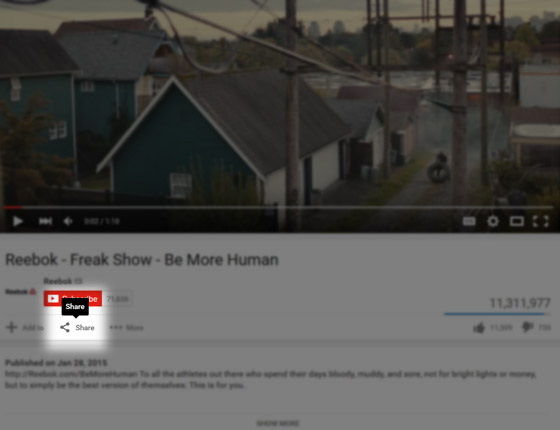
Click the Share button in the Actions Menu below the selected video.
Step Two:
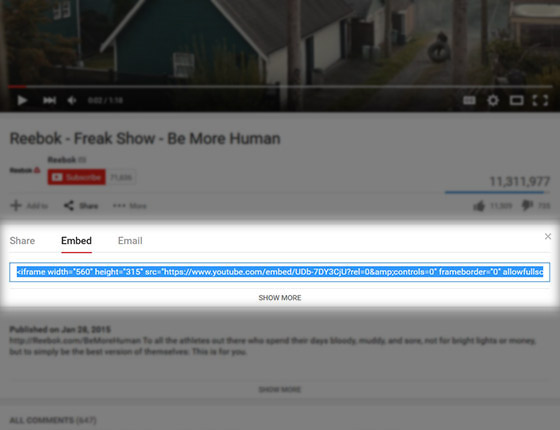
When the sub-menu is visible click on the Embed button. Note the highlighted code and the SHOW MORE button just below it. Click that to show more options.
Step Three:
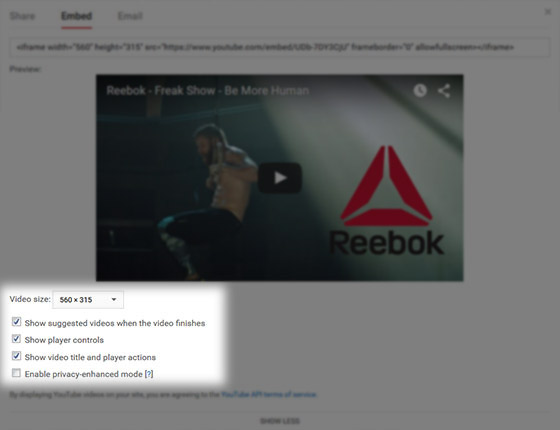
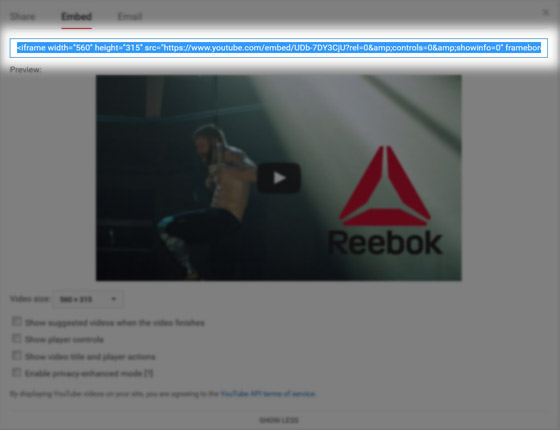
Here you’ll see three options out of four that are checked. These options are directly related to the three GET variables that were discussed earlier.
Step Four:
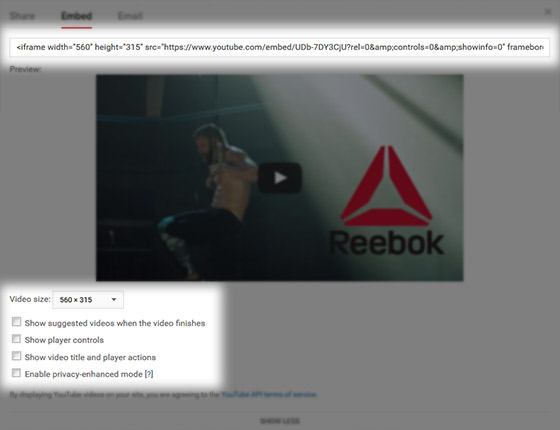
As the options are unchecked the code is modified to reflect the new settings. The preview for the video also confirms the changes.
Step Five:
Copy the custom code from the input box and paste it into your site files or site CMS to be presented later.
Conclusion:
By using these GET variables or use the options available to you from the interface you can have greater control over the content that is displayed on your page. They can be added individually or any combination to meet your needs.
If you would like to learn about more of the GET variables that can be used with YouTube player to further customize the video content visit the official Google Developer: YouTube IFrame Player API website.